Foundry VTT Module
What the Foundry VTT module does
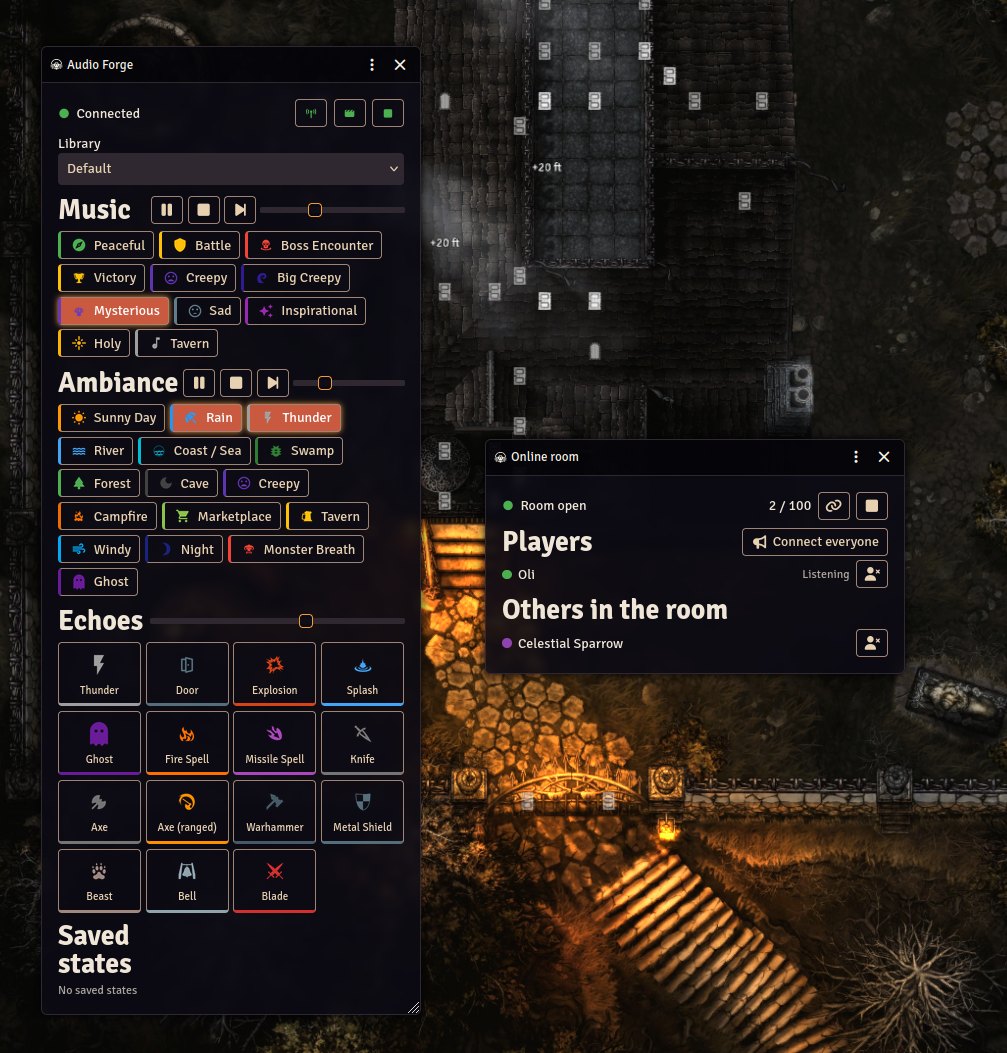
The Audio Forge module for Foundry VTT connects your Foundry world to Audio Forge. It gives you scene and combat audio, a control panel for the GM, an online room your players can listen to inside Foundry, and a macro API.
| Feature | What it does |
|---|---|
| Scene audio | Attach an audio profile to a scene. It runs when the scene is activated, or on demand from the panel |
| Combat audio | Separate profiles for when combat starts and when it ends |
| GM control panel | Play, pause, stop and skip per section, volumes, categories, echoes, saved states and the active library |
| Online room | Your players hear your Audio Forge output inside Foundry, with nothing to install |
| Macro API | Trigger sounds and read state from your own Foundry macros |
The module talks to Audio Forge through its Local API. Only the GM’s browser connects to Audio Forge, so each GM uses the Audio Forge running on their own computer.
Requirements
- Foundry VTT v13 or newer (tested on v14)
- Audio Forge running on the GM’s computer, or on a device reachable over your local network
- Local API enabled in Audio Forge settings
- For the online room: an Audio Forge account signed in on the GM’s computer
Installation
- In Foundry, open Add-on Modules and click Install Module
- Paste this manifest URL into the Manifest URL field and click Install:
https://github.com/Slashpaf/audioforge-foundryvtt/releases/latest/download/module.json- Open your world, go to Manage Modules, enable Audio Forge and save
Connecting to Audio Forge
- In Audio Forge, open Settings → External Control → Local API and confirm it is enabled (default port 8329)
- In Foundry, open Game Settings → Configure Settings → Audio Forge
- Set Audio Forge host to
localhostand Local API port to8329
These settings are stored in your browser, so each GM sets their own. The panel shows Connected once Audio Forge is reachable.
If Audio Forge is on another device, enable Listen on LAN in Audio Forge, enter that device’s IP address as the host, and paste the API key shown in Audio Forge into the API key setting. See Network setup for how to find the IP address and open the firewall.
HTTPS note: The Local API uses plain
http://andws://. Browsers allow that tolocalhosteven when Foundry is served over HTTPS, but block it to any other host. If Foundry is served over HTTPS and Audio Forge is on another machine, the panel shows a Blocked message. Serve Foundry over plain HTTP on that network instead.
The control panel
Open the panel with the Audio Forge button in the sound controls, or press Alt+A.
- Music and Ambiance: play or pause, stop and skip to the next track per section, with a volume slider and a button for each category
- Echoes: one-shot sound effects, with their own volume slider
- Saved states: restore a saved state in one click
- Library: switch the active library
- Header buttons: open the online room, apply the current scene’s audio, and stop everything
The panel mirrors Audio Forge live. Changes you make in the app, such as enabling or disabling a category, show up in the panel without reloading. Categories without tracks and categories that are disabled in the Anvil are hidden, as in the app.
Tip: When Audio Forge is not connected, the panel and the room window show a link to download it.
Scene audio
Attach audio to a scene so the right soundscape starts when you activate it.
- Right-click a scene in the Scenes directory and choose Scene audio (or use the header button in Scene Configuration)
- Choose what the profile does
- Save
A profile does one of the following:
- Nothing
- Restore a saved state: brings back a complete Audio Forge state, optionally switching library first
- Pick music and ambiance: choose one music category and any number of ambiance categories. You can also stop music when none is picked, stop other ambiance, and stop running echoes
Use Test now in the editor to try a profile without saving it. To run the current scene’s profile again later, use the clapperboard button in the panel header.
Ambiance changes are sent as explicit on and off commands, so applying a profile again never switches things off by accident.
Turn off Apply scene audio on activation in the module settings if you only want to apply scene audio by hand.
Combat audio
Use the same kind of profile for combat. In the module settings, open Combat start audio and Combat end audio and configure each one. They run when a combat starts and when it ends.
Turn off Apply combat audio in the module settings to disable both.
Online room
The online room lets your players hear your Audio Forge output inside Foundry. They do not need Audio Forge, and nothing to install: the audio plays in their browser tab.
How it opens
By default the room opens by itself when the first player connects and closes a minute after the last listener leaves. A guest who joined with the room link counts as a listener, so the room stays open while anyone is still listening.
- A room you open yourself is never closed for you
- A room you close by hand stays closed until every player has left once
- If Audio Forge is closed and reopened, the room is closed for the players and a new one opens, which they join on their own
To open and close the room yourself, turn off Open the online room while players are connected in the module settings. Then open the room window with the broadcast button in the panel header, optionally set a password, and click Open room.
What you see
The room window lists the players of your world with their state, such as Listening, Not joined or Waiting, room full, and a counter of how many listeners are in the room.
- Connect everyone or Connect this player now: tell players to join straight away
- Copy the room link: share the room with someone who is not in your Foundry world. They show up under Others in the room
- Remove from the room: remove a player or a guest
- Close room: stop the room for everyone
Room limits
Free Audio Forge rooms have a listener limit. Players who do not fit are shown as Waiting and you get a notification. Remove someone, then connect the waiting player. Subscribing to Audio Forge in the app removes the limit.
For your players
Players get a broadcast button in their scene controls. They join automatically, unless they turn off Join the room automatically in their own module settings, and they can leave, rejoin and change the volume from the room window. Browsers keep audio silent until the page has been clicked, so a player may need to click somewhere in Foundry first. The window shows a button when that is the case.
Macro API
The module exposes an API for your own macros:
const af = game.modules.get("audioforge").api;
await af.play("Music", "Battle");
await af.playEcho("Thunder");
await af.setVolume("Ambiance", 0.6);   // 0..1, as shown in the app
await af.restoreState("Tavern night");
await af.send({ command: "stop", section: "All" }); // any Local API command
send accepts any command of the Local API. The module also fires two hooks you can listen to: audioforge.connection(connected) and audioforge.state(state).
Troubleshooting
The panel says Audio Forge is not connected
- Make sure Audio Forge is running and the Local API is enabled in Settings → External Control → Local API
- Check that the Audio Forge host and Local API port match (default:
localhostand8329) - If Audio Forge is on another device, enable Listen on LAN and enter its API key. See Network setup
The panel says Blocked
- Foundry is served over HTTPS and Audio Forge is on another machine. Serve Foundry over plain HTTP on your local network instead, or run Audio Forge on the same computer
A category is missing from the panel
- Categories without tracks and categories that are disabled in the Anvil are hidden. Enable the category in Audio Forge and add a sound to it
Players cannot hear the room
- Ask them to click anywhere in Foundry first, because browsers block audio until the page has been used
- Check that the room is open in your room window and that the player shows Listening
Related
- Stream Deck and OpenDeck plugin – control Audio Forge from your Stream Deck
- Local API reference – full HTTP and WebSocket API documentation