Stream Deck Plugin
What the Stream Deck plugin does
The Audio Forge Stream Deck plugin lets you control playback directly from your Elgato Stream Deck. Each button can be configured independently to trigger a specific action in Audio Forge.
Seven action types are available:
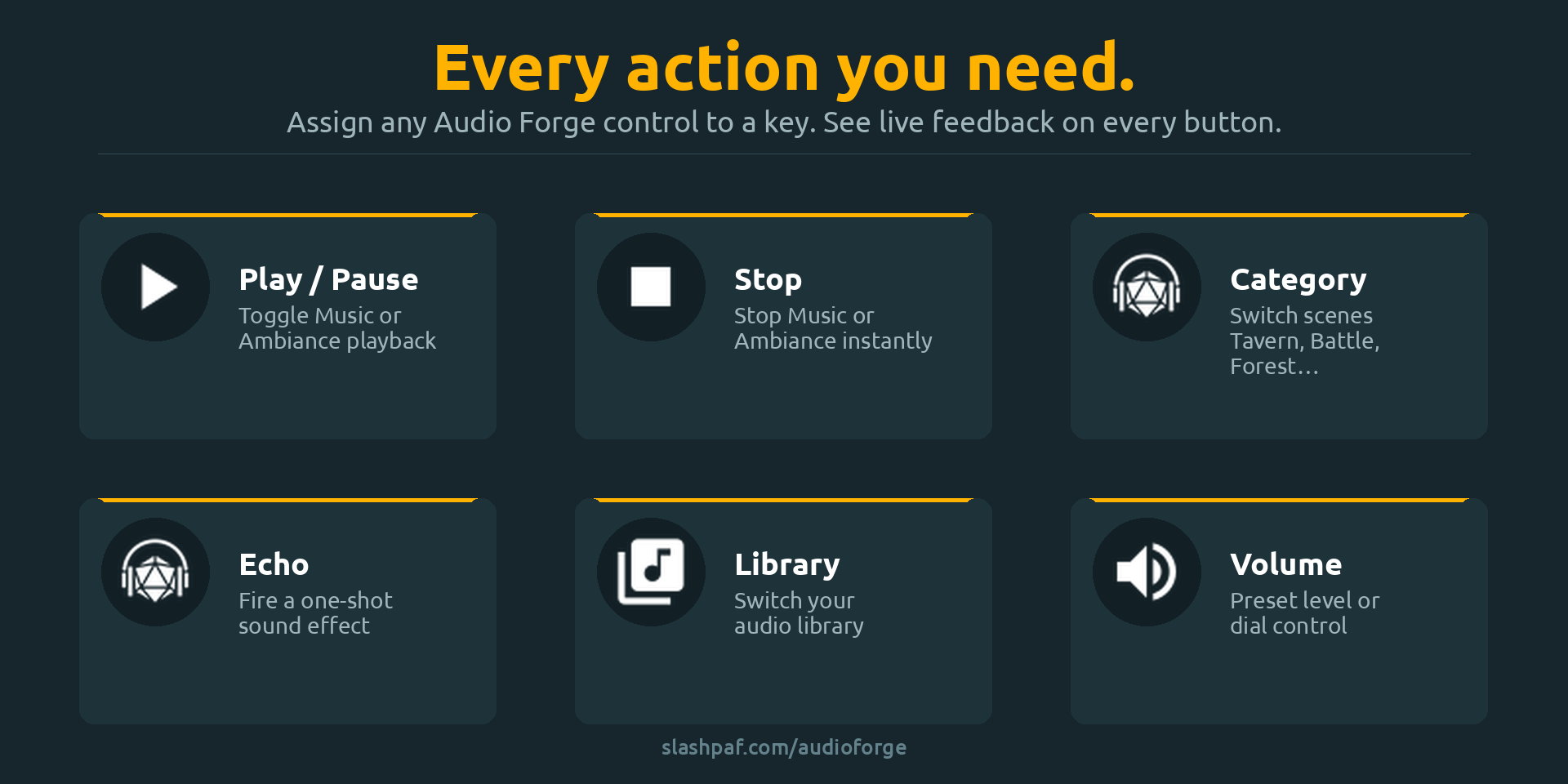
| Action | What it does |
|---|---|
| Play / Pause | Toggles playback for Music or Ambiance |
| Stop | Stops all playback for a section |
| Category | Activates or toggles a specific sound category |
| Echo | Triggers a one-shot Echo sound effect |
| Volume | Sets or adjusts volume for a section (dial supported on Stream Deck+) |
| Library | Switches to a specific sound library |
| Restore Saved State | Restores a named saved state, including library, music, and ambiance |
Category, Echo, and Restore Saved State buttons display icons fetched directly from Audio Forge.
Requirements
- Audio Forge running on Windows (same machine), or on any platform (Windows, Android, iOS) reachable over your local network
- Elgato Stream Deck software v6.5 or later
- Local API enabled in Audio Forge settings (it is on by default)
Installation
- Open the Elgato Marketplace page and click Open in Stream Deck – the plugin installs automatically via the Stream Deck app
- The Audio Forge actions now appear in the Stream Deck action list under the Audio Forge category
Same machine setup (default)
If Stream Deck and Audio Forge are both on the same Windows PC, no extra configuration is needed.
- Open Audio Forge
- Go to Settings → External Control → Local API and confirm it is enabled
- Leave the default port (8329) and leave Listen on LAN off
- Drag any Audio Forge action onto your Stream Deck
- The plugin connects automatically
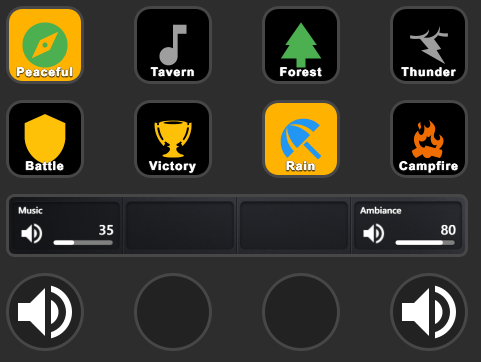
The plugin uses http://localhost:8329 by default. As long as Audio Forge is running, buttons will reflect live state.
Tip: Pressing any button while offline will attempt to launch Audio Forge automatically. If Audio Forge is not installed, it opens the download page in your browser instead.
Network setup (Audio Forge on a different device)
Use this if Audio Forge is running on a different machine than the one with Stream Deck – including Audio Forge on Android or iOS, or a separate Windows PC (for example, a game PC separate from a streaming PC).
On the Audio Forge device
- Go to Settings → External Control → Local API
- Enable Listen on LAN
- Note the port (default: 8329)
- Copy the API Key shown on that screen
Audio Forge will now accept connections from other devices on your local network.
Find the Audio Forge device’s IP address
On Windows, open a command prompt and run:
ipconfig
Look for the IPv4 Address under your active network adapter, for example 192.168.1.42.
On Android or iOS, go to your device’s Wi-Fi settings, tap the connected network, and look for the IP address listed there.
Use a static IP address (recommended)
By default, your router assigns IP addresses dynamically, which means the IP of the Audio Forge device can change after a reboot or reconnect. When that happens the plugin will lose the connection and you will need to update the Host setting manually.
To avoid this, assign a static (fixed) IP to the Audio Forge device. You can do this in two ways:
- On the device itself – go to Wi-Fi settings, tap the connected network, and switch from DHCP to a static IP. Enter an address outside your router’s DHCP range (check your router’s admin page to find that range).
- On your router (recommended) – most routers let you reserve a fixed IP for a specific device by its MAC address. This is called a DHCP reservation or static lease, and requires no changes on the device itself.
How to do this varies by router brand. Search for “DHCP reservation [your router brand]” for step-by-step instructions, or refer to your router’s manual.
On the Stream Deck machine
- Open Stream Deck software
- Click any Audio Forge action on your deck to open its settings
- Scroll to the bottom of any action’s Property Inspector to find the connection settings
- Set Host to the IP address of the Audio Forge device (e.g.
192.168.1.42) - Set Port to match (e.g.
8329) - Paste the API Key you copied earlier
The plugin will reconnect automatically using these settings. All actions share the same connection settings.
Firewall (Windows only)
If Audio Forge is on Windows and the plugin cannot connect, the Windows firewall may be blocking the port. To allow it:
- Open Windows Defender Firewall with Advanced Security
- Click Inbound Rules → New Rule
- Choose Port, then TCP, then enter
8329 - Allow the connection, apply to all profiles, give it a name like
Audio Forge Local API
Configuring actions
Each action is configured independently in its Property Inspector (the panel that appears in Stream Deck when you select a button).
Play / Pause
- Section – Music or Ambiance
Stop
- Section – Music or Ambiance
Category
- Section – Music or Ambiance
- Category – dropdown populated from your Audio Forge library
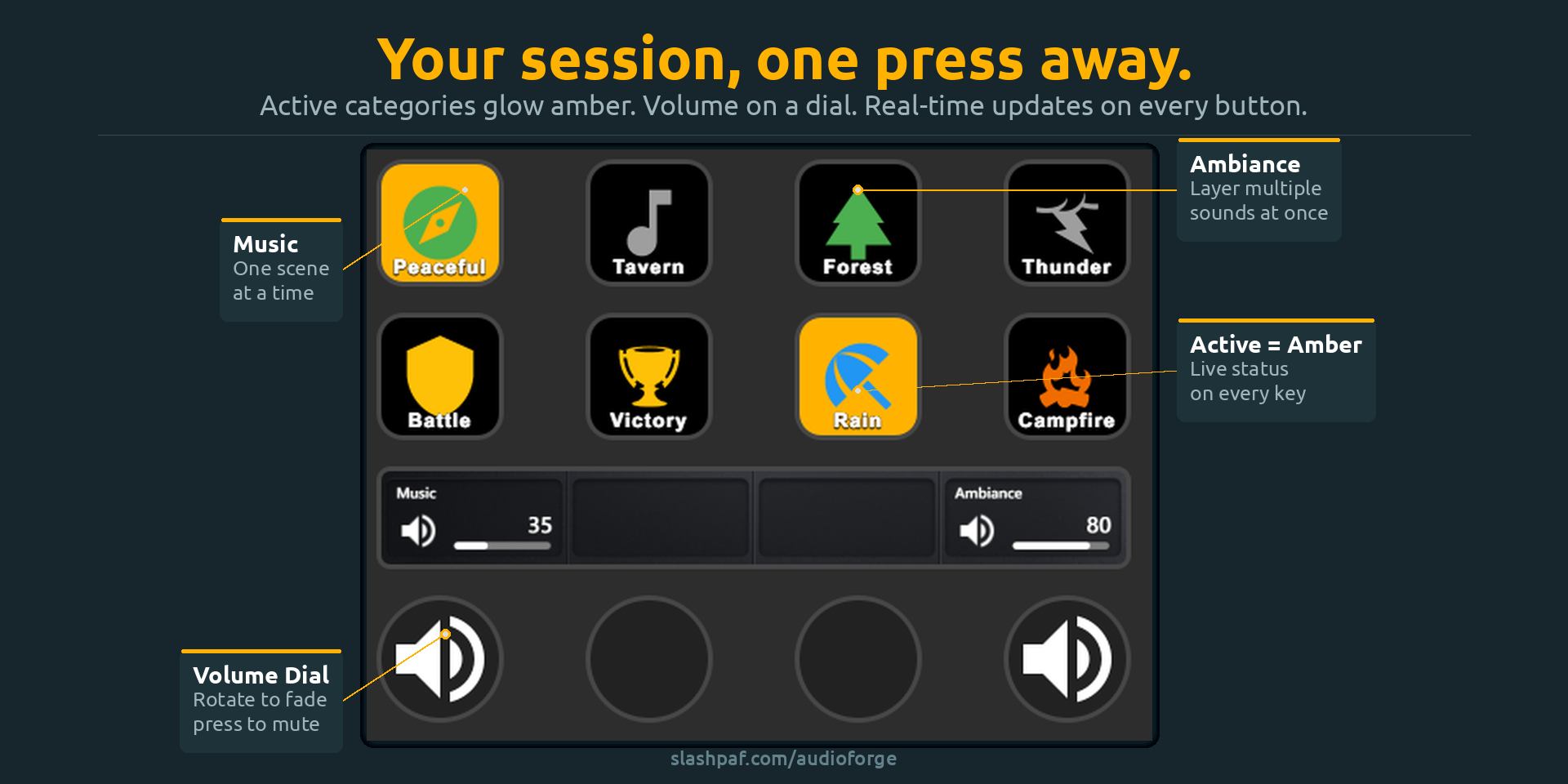
The button shows the category’s icon and color. It has two visual states: active (the category is currently playing) and inactive.
Echo
- Category – dropdown showing only Echo-eligible categories (Ambiance categories marked as one-shot in Audio Forge)
The button shows the category’s icon. Pressing it triggers the Echo and returns to its default state.
Volume
- Section – Music or Ambiance
- Value – target volume level (0 to 100) when used as a key press
- Step – how much to increase or decrease per dial tick (Stream Deck+ only)
On Stream Deck+, rotating the dial adjusts volume incrementally. Pressing the dial toggles mute.
Library
- Library – dropdown showing all libraries in your Audio Forge catalog
The button shows two states: active (this library is selected) and inactive.
Restore Saved State
- Saved State – dropdown showing all saved states across your Audio Forge libraries
The button restores the selected saved state in one press, including the active library, music categories, ambiance categories, and volumes. It displays the saved state’s composite icon when available.
Offline behavior
If Audio Forge is not running when Stream Deck starts, all buttons show (offline) next to their label. Icons and names from the last connection are remembered so you can still identify each button.
As soon as Audio Forge starts and the Local API becomes reachable, the plugin reconnects automatically within a few seconds and all buttons update to live state.
Updating the plugin
The plugin updates automatically through the Elgato Marketplace when a new version is published. No manual action needed.
Troubleshooting
Buttons show (offline) even though Audio Forge is running
- Confirm the Local API is enabled in Settings → External Control → Local API
- Check the port matches what the plugin is configured to use (default: 8329)
- If using network mode, make sure Listen on LAN is enabled and the firewall allows the port
Category / Echo / Saved State dropdowns are empty
- The plugin needs to be connected to Audio Forge to populate the lists
- Start Audio Forge first, then open the action’s settings panel
- If already connected, click the refresh icon next to the dropdown
Icons are not showing
- Icons are fetched from Audio Forge when the plugin connects
- They are cached locally so they survive restarts – if you change a category icon or saved state icon in Audio Forge, the plugin refreshes it automatically when the button becomes visible again
Network connection is refused
- Confirm Listen on LAN is enabled in Audio Forge settings
- Check the IP address and port are entered correctly in the plugin settings
- Add a firewall inbound rule for TCP port 8329 on the Audio Forge machine (see Network setup above)
Related
- Local API reference – full HTTP and WebSocket API documentation
- MQTT integration – alternative for advanced setups with a broker